Self-provisioning
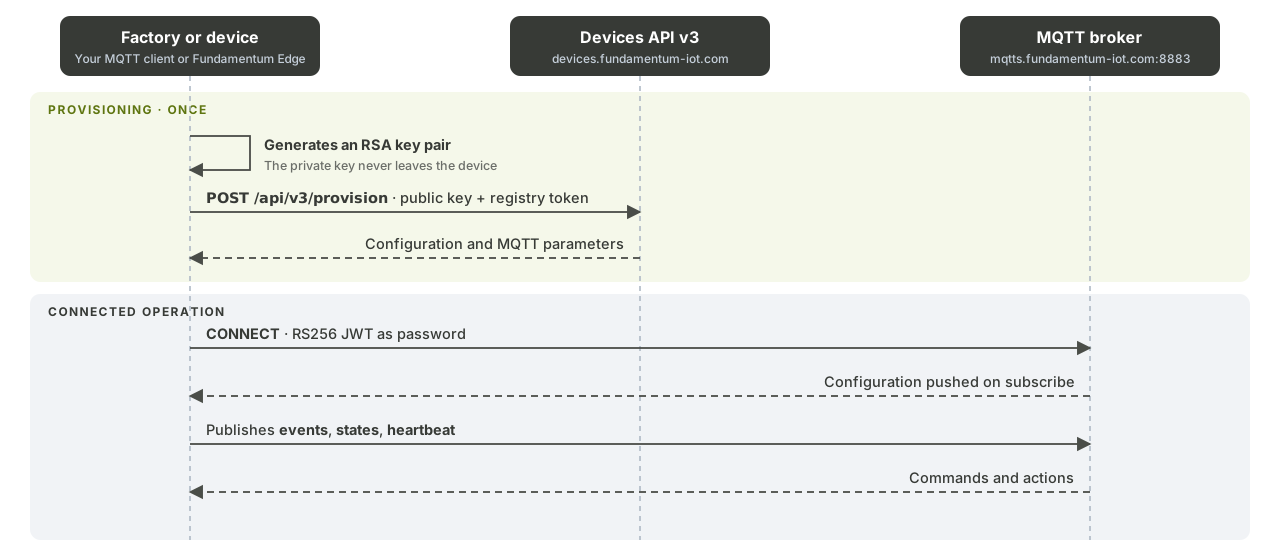
With self-provisioning, the device registers itself in a registry at first boot, using the registry's provisioning token. This page shows you how to get the token file, generate the device key and call the Devices API.
Before you begin
- You have a registry with an open provisioning window and room in its device limit. See Provisioning.
- You have access to the registry in the Hub.
- The device has OpenSSL (or an equivalent library) and can reach
https://devices.fundamentum-iot.com.
1. Download the registry token file
In the Hub, open the registry dashboard and select Download Token file. The Hub saves <registry-name>_token.json:
{
  "server_url": "https://devices.fundamentum-iot.com",
  "mqtt_host": "mqtts.fundamentum-iot.com",
  "mqtt_port": "8883",
  "token": "<registry-provisioning-token>",
  "project_id": 123,
  "registry_id": 456,
  "region_id": 1
}
The button is disabled until the registry has a provisioning secret.
You can also fetch the token with an OAuth token that has permission to store devices in the project. See Authentication.
curl -s https://devices.fundamentum-iot.com/api/v3/registries/<registry-id>/token \
  -H "Authorization: Bearer $TOKEN"
Copy the token file onto the device, or bake its values into your firmware image. Treat the token as a secret: anyone who holds it can register devices in this registry.
2. Generate the device key pair
Generate the key pair on the device, or on the production line. The private key must never leave the device.
openssl genpkey -algorithm RSA -out rsa_private.pem -pkeyopt rsa_keygen_bits:2048
openssl rsa -in rsa_private.pem -pubout -out rsa_public.pem
3. Register the device
Call POST /api/v3/provision with no Authorization header. The registry token goes in the request body as access_token.
curl -s -X POST https://devices.fundamentum-iot.com/api/v3/provision \
  -H "Content-Type: application/json" \
  -d '{
    "project_id": <project-id>,
    "region_id": 1,
    "registry_id": <registry-id>,
    "serial_number": "<serial-number>",
    "asset_type_id": 2,
    "access_token": "<registry-provisioning-token>",
    "algorithm": "RS256",
    "secret": "-----BEGIN PUBLIC KEY-----\n...\n-----END PUBLIC KEY-----"
  }'
| Field | Required | Description |
|---|---|---|
project_id, registry_id |
Yes | From the token file. |
region_id |
Yes | Always 1. |
serial_number |
Yes | Unique in the registry: lowercase letters, digits, - and _. |
access_token |
Yes | The token value from the token file. |
secret |
Yes | The device public key, in PEM format. |
algorithm |
No | RS256 (default) or Password. |
asset_type_id |
No | Defaults to 2 (IoT Device). This isn't the device type ID; see below. |
To find a different asset_type_id, open the registry page in the Hub and note the Id of the row in the Device Limit table. Then open Device Types and read the Asset Type ID (ati) column for that device type.
A successful call returns 200 with the device configuration and the MQTT endpoint:
{
  "status": "success",
  "data": {
    "configuration": {},
    "mqtt": { "host": "mqtts.fundamentum-iot.com", "port": "8883" }
  }
}
4. Handle the response
| Status | Meaning | What to do |
|---|---|---|
200 |
The device is provisioned. | Store the MQTT host and port, then connect. |
400 |
A field is invalid; data.errors gives the path and location. |
Fix the request. |
404 |
The project, registry or asset type wasn't found. | Check the token file values. |
409 |
The device is already provisioned with a different key (device already provisioned). |
Keep the original key, or re-provision explicitly (step 5). |
422 |
Validation failed; data names the field and the reason. |
Fix the field named in data. |
Calling POST again with the same key is safe, so your firmware can call it on every boot until it succeeds.
5. Re-provision explicitly
POST /api/v3/provision is the safe call: it never replaces a key that is already registered. When you deliberately rotate the key, for example after replacing the device's secure element, call PUT /api/v3/provision with the same body. PUT overwrites the stored algorithm and secret.
curl -s -X PUT https://devices.fundamentum-iot.com/api/v3/provision \
  -H "Content-Type: application/json" \
  -d @provision.json
Keep PUT for deliberate key rotation and use POST in your normal boot sequence.
What's next
- API reference in Swagger UI: Devices API v3
- Connect over MQTTS with the new key.
- Let the Linux daemon handle provisioning for you.
- See the Devices API v3 reference for the full schema.