Remote terminal and port forwarding
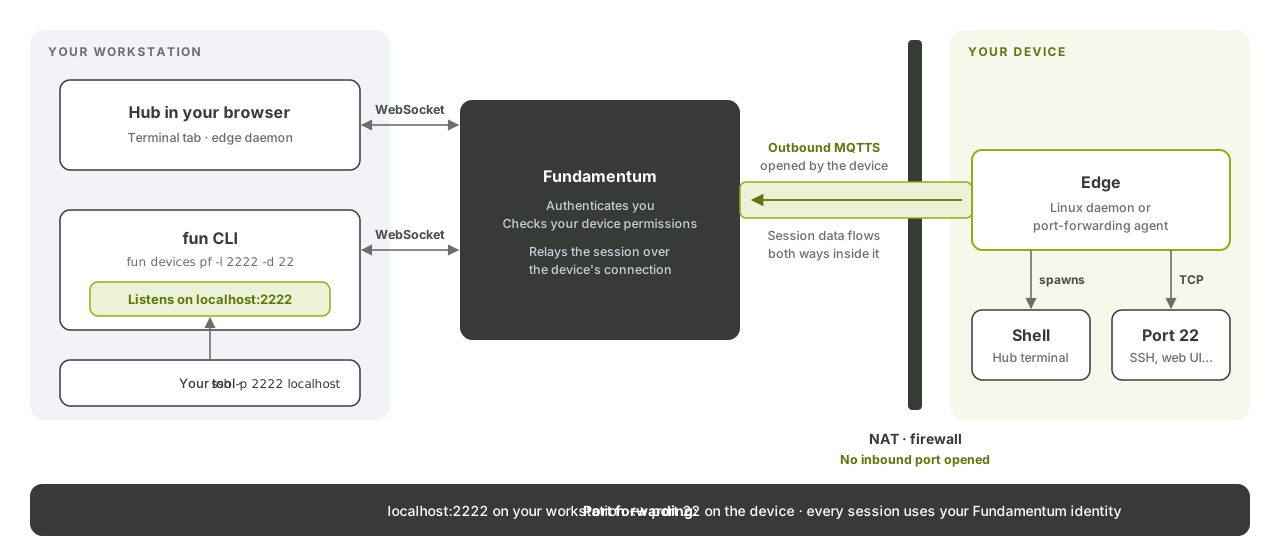
Open a shell on a device from your browser, or reach any service running on it (SSH, a local web interface, a database) from your workstation. The session goes through the device's existing secure connection to Fundamentum, so you don't open any inbound port on the device or its network, and it works behind NAT and firewalls.
Before you begin
-
The device runs one of the Edge components that handle tunnels:
- the Linux daemon with its port forwarding service enabled, or
- the standalone port-forwarding agent, for devices that don't run the daemon.
-
The device is connected. Check its heartbeat in the Hub, or see Send telemetry, states and heartbeats.
-
For port forwarding, you have the
funCLI installed and logged in:fun login -
You hold the
updatepermission on the project's devices. See Roles and permissions.
How it works
your browser or workstation ──▶ Fundamentum ──▶ device's MQTT connection ──▶ Edge ──▶ local port or shell
Both features rely on the outbound connection the device already keeps open to the MQTT broker. Every session is authenticated with your Fundamentum identity and checked against your permissions.
Open a remote terminal in the Hub
- In the Hub, open the device's page.
- Select the Terminal tab.
- Choose the edge daemon connection method.
- Enter the command to run, for example
/bin/bash, and connect.
A terminal opens in the browser. Closing the tab or losing the connection ends the session: it doesn't reconnect on its own, so open a new one.
Forward a port with the CLI
fun devices port-forward (alias fun devices pf) maps a port on the device to a port on your machine:
fun devices port-forward -p <project-id> -r <registry-id> -s <serial-number> -l 2222 -d 22
| Flag | Meaning |
|---|---|
-p, --project |
Project ID |
-r, --registry |
Registry ID |
-s, --serial |
Device serial number: lowercase letters, digits, _ and - |
-l, --local-port |
Port to open on your machine |
-d, --remote-port |
Port on the device. A service must be listening on it, or the command fails |
--context |
fun context to use, if you have several |
All flags except --context are required. The command runs until you press a key.
While it runs, use the local port as if the service were on your machine. For example, SSH to the device:
ssh -p 2222 <device-user>@localhost
Or open a device's local web interface forwarded with -l 8080 -d 80 at http://localhost:8080.
Use it in scripts and CI
For non-interactive use, authenticate the CLI with a service account token through environment variables instead of fun login. See The fun CLI and Roles and permissions.
Troubleshooting
| Symptom | Check |
|---|---|
| The command fails right away | A service is listening on --remote-port on the device |
| No connection to the device | The device is online and its Edge component has port forwarding enabled |
| Access denied | Your role covers the project and its devices |
What's next
- Port-forwarding agent: install and configure the device side.
- File transfers: move files without opening a session.
- fun CLI reference