Connectors
Connectors push your project's topic messages to your own systems as they arrive, so you never poll and never connect to the device broker. This page shows you how to deliver data to your MQTT broker (with mutual TLS if you need it) or to your HTTPS endpoint as a webhook.
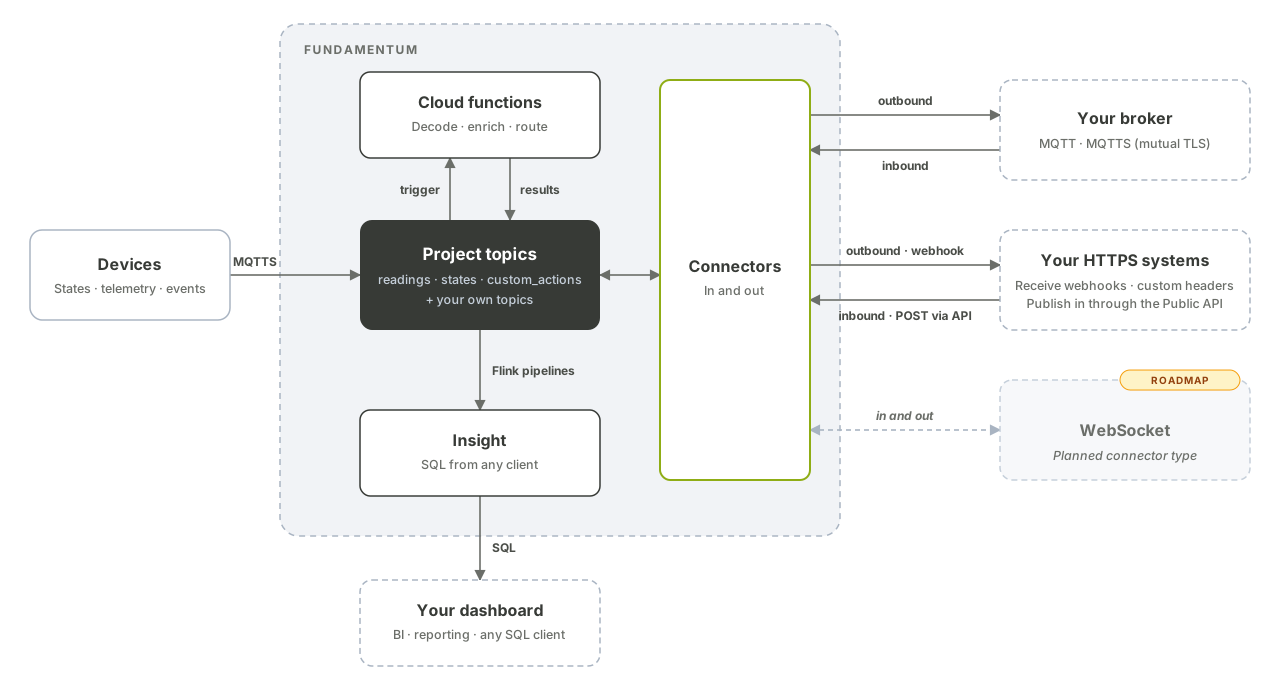
How connectors work
A connector describes how Fundamentum reaches one of your systems. A link attaches a connector to a project topic and gives the destination on your side:
- an outgoing link delivers every message of the topic to your system;
- an ingoing link brings messages from your system into the topic (see Inbound flows).
A connector can have many links. Deleting a connector deletes its links; a disabled connector delivers nothing.
| Adapter | adapter_type |
Destination |
|---|---|---|
| MQTT | 1 |
Your MQTT broker |
| MQTTS | 2 |
Your MQTT broker over TLS 1.2 or later, with mutual TLS |
| HTTPS | 3 |
Your HTTPS endpoint (webhook) |
WebSocket connectors are on the roadmap.
The link direction must match the topic type: outgoing links accept telemetry, states, dimension and fact topics; ingoing links accept custom_actions, dimension and fact topics.
Before you begin
- The
funCLI installed and signed in (see Authentication), or access to the Connectors page of the Hub. - Your project ID and the ID of the topic to deliver (
fun api v1 pub-sub list-pub-sub-topics --project-id <project-id>). - For MQTT: a broker reachable from the Internet that supports MQTT 5. For HTTPS: a public
https://endpoint that acceptsPOST.
1. Create the connector
The connection settings go in connection_string, as key=value pairs separated by ;. Secrets are written as placeholders (%password%, %ca_cert%, %client_cert%, %client_key%) and their values go in placeholders. Secret values are never returned by the API.
Your MQTT broker
| Key | Required | Description |
|---|---|---|
host |
Yes | Broker hostname |
port |
Yes | Broker port (typically 1883 for MQTT, 8883 for MQTTS) |
clientid |
Yes | Client ID Fundamentum uses on your broker |
username, password |
No | Password authentication |
ca_cert |
MQTTS | PEM of the certificate authority that signed your broker's certificate |
client_cert, client_key |
MQTTS | PEM client certificate and private key, for mutual TLS |
Write the connector definition to connector.json:
{
  "name": "plant-broker",
  "adapter_type": 2,
  "is_enabled": true,
  "connection_string": "host=mqtt.example.com;port=8883;clientid=fundamentum-plant;ca_cert=%ca_cert%;client_cert=%client_cert%;client_key=%client_key%",
  "placeholders": {
    "ca_cert": {"value": "-----BEGIN CERTIFICATE-----\n..."},
    "client_cert": {"value": "-----BEGIN CERTIFICATE-----\n..."},
    "client_key": {"value": "-----BEGIN PRIVATE KEY-----\n..."}
  }
}
fun api v1 pub-sub store-connector --project-id <project-id> --body-file connector.json
When you update a connector later, set "skip_update": true on a placeholder to keep its stored value.
Your HTTPS endpoint
| Key | Required | Description |
|---|---|---|
host |
Yes | Base URL; must start with https:// |
headername, headervalue |
No | Custom header added to every request, for example your API key. Set both or neither. |
fun api v1 pub-sub store-connector --project-id <project-id> --body '{
  "name": "erp-webhook",
  "adapter_type": 3,
  "is_enabled": true,
  "connection_string": "host=https://erp.example.com/fundamentum;headername=X-Api-Key;headervalue=<your-key>"
}'
The response contains the connector id.
2. Check the connection
fun api v1 pub-sub get-connector-status --project-id <project-id> --connector-id <connector-id>
{"status": "success", "data": {"connected": true}}
3. Link a topic
fun api v1 pub-sub store-link --project-id <project-id> --connector-id <connector-id> \
  --body '{"pubsub_topic_id": <topic-id>, "external_topic_name": "plant/readings", "ingoing": false}'
| Field | Description |
|---|---|
pubsub_topic_id |
ID of the project topic |
external_topic_name |
MQTT topic on your broker (up to 256 characters), or the route appended to the HTTPS host |
ingoing |
false to deliver to your system, true to receive from it |
On an MQTT connector, the same external topic cannot be used for both an ingoing and an outgoing link.
4. Receive the messages
On your broker, subscribe to external_topic_name. Each message value is forwarded as is, at QoS 0, and the message headers become MQTT 5 user properties.
On your HTTPS endpoint, Fundamentum sends one request per message:
POST https://erp.example.com/fundamentum/plant/readings
Content-Type: application/json
X-Api-Key: <your-key>
Project-Id: <project-id>
Registry-Id: <registry-id>
Serial-Number: <serial-number>
Device-Id: <device-id>
Received-At: 2026-10-22T14:30:00.123456789Z

{"deviceId": "<serial-number>", "data": "<base64-payload>"}
The body is the topic message (here, device telemetry, whose envelope is described in Topics). Message headers become HTTP headers, with underscores replaced by dashes.
Answer with any 2xx status within 10 seconds. Fundamentum makes up to 5 attempts in total, with exponential backoff, when your endpoint returns 408, 500, 502, 503 or 504, or 429 with a Retry-After header (in seconds), which it honours. Other statuses are not retried.
Manage connectors and links
| Task | Command |
|---|---|
| List connectors | fun api v1 pub-sub get-connectors --project-id <project-id> |
| Update a connector | fun api v1 pub-sub update-connector --project-id <project-id> --connector-id <connector-id> --body-file connector.json |
| Delete a connector and its links | fun api v1 pub-sub delete-connector --project-id <project-id> --connector-id <connector-id> |
| List a connector's links | fun api v1 pub-sub get-links --project-id <project-id> --connector-id <connector-id> |
| Delete a link | fun api v1 pub-sub delete-link --project-id <project-id> --connector-id <connector-id> --link-id <link-id> |
What's next
- API reference in Swagger UI: PubSub
- Inbound flows: send messages from your systems into the platform.
- Cloud functions: decode or enrich messages before they reach your connector.
- Public API reference: full connector and link schemas.