Firmware updates (OTA)
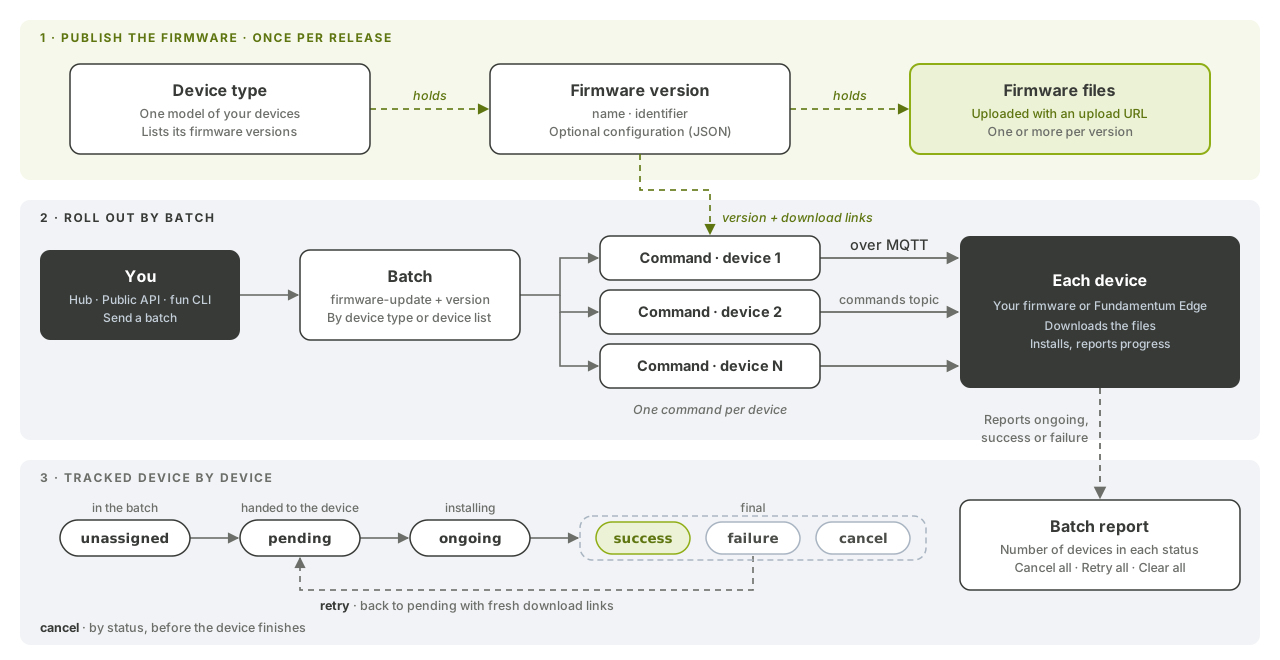
Upload a firmware version to a device type, then send it over the air to one device or to every device of that type in a registry. Fundamentum tracks a fleet update device by device, and lets you cancel or retry it in one call.
Before you begin
- You have the
funCLI logged in, or a token for the Public API. See Authentication. - You know your
<project-id>,<registry-id>and the<device-type-id>of the devices to update. - Your devices handle the firmware update command. The Linux daemon and the MCU library both expose a firmware update hook that your code implements.
How it works
A firmware update is one of the platform's built-in commands, identified by the short name firmware-update. Firmware is stored as versions of a device type. When you send the command, the device receives the version's name, identifier, configuration and a presigned download URL for each of its files. It downloads the files, installs them and reports progress back.
A single command targets one device. A batch targets many: a list of devices, or every device of a type in a registry. Each device in a batch has one of six statuses:
| Status | Meaning |
|---|---|
unassigned |
Created, not yet handed to the device |
pending |
Waiting to be delivered |
ongoing |
The device is installing |
success |
The device reported success |
failure |
The device reported a failure |
cancel |
Cancelled before completion |
1. Create a firmware version
A version has a display name and an identifier that is unique within the device type. configuration is optional free-form JSON that the device receives with the update.
fun api v1 device-type store-version \
  --project-id <project-id> --device-type-id <device-type-id> \
  --body '{"name": "Firmware 2.4.0", "identifier": "2.4.0", "configuration": {"channel": "stable"}}'
Keep the id from the response: it's your <version-id>.
2. Upload the firmware files
Request an upload URL for each file, then upload the file to it:
fun api v1 device-type store-version-file \
  --project-id <project-id> --device-type-id <device-type-id> --version-id <version-id> \
  --body '{"file_name": "firmware-2.4.0.bin"}' --data-only
curl --upload-file firmware-2.4.0.bin "<upload_url>"
To check what devices will receive, read the version's action payload. Its configuration_file_url array holds a presigned download URL for every file:
fun api v1 device-type get-v1-projects-by-project-id-device-types-by-device-type-id-versions-by-version-id-action-payload \
  --project-id <project-id> --device-type-id <device-type-id> --version-id <version-id>
3. Update one device
Ask Fundamentum to prepare the command for a device. The response holds the command (with its id), the versions available for that device and, when the device is reached through a gateway, the gateways that can relay it:
fun api v1 commands create-device-commands \
  --project-id <project-id> --short-name firmware-update --device-id <device-id>
Then send it, using the command id and the target version:
fun api v1 commands store-device-commands \
  --project-id <project-id> --short-name firmware-update --device-id <device-id> \
  --body '{"device_id": <device-id>, "command_id": <command-id>, "version_id": <version-id>}'
Add "gateway_id": <gateway-id> for a device you reach through a gateway. See Gateways and sub-devices. Follow the command with fun api v1 commands list-device-commands --project-id <project-id> --device-id <device-id>.
4. Update the whole fleet
Send the command to every device of a type in a registry:
fun api v1 commands store-batch-command-by-device-type \
  --project-id <project-id> --registry-id <registry-id> \
  --short-name firmware-update --device-type-id <device-type-id> \
  --body '{"parameters": {"command_id": <command-id>, "version_id": <version-id>}}'
To target a selection instead, use store-batch-command-by-device-ids with {"device_ids": [...], "parameters": {...}}.
5. Track the batch
# All batches of the registry: batch_id, command, commands_count, last_update
fun api v1 commands list-batch-commands --project-id <project-id> --registry-id <registry-id>

# Number of devices in each status
fun api v1 commands batch-command-report-report \
  --project-id <project-id> --registry-id <registry-id> --batch-id <batch-id>

# Per-device detail
fun api v1 commands list-batch-command-device-commands \
  --project-id <project-id> --registry-id <registry-id> --batch-id <batch-id>
In the Hub, the batch view shows the same report as a chart and refreshes on its own.
6. Cancel or retry
Batch operations apply to every device currently in a given status. The status in the path selects the devices, and the status in the body is what you want to do with them.
Cancel everything that hasn't started (run it once for unassigned and once for pending):
fun api v1 commands update-batch-command-by-status \
  --project-id <project-id> --registry-id <registry-id> --batch-id <batch-id> --status pending \
  --body '{"command_name": "firmware-update", "status": "cancel", "message": "Cancelled by operator."}'
Retry every failed device:
fun api v1 commands update-batch-command-by-status \
  --project-id <project-id> --registry-id <registry-id> --batch-id <batch-id> --status failure \
  --body '{"command_name": "firmware-update", "status": "retry", "message": "Retried by operator."}'
A retry generates fresh download URLs. To clear finished entries from the batch, use delete-batch-command-by-status with --status cancel or --status failure. The Hub's Cancel all, Retry all and Clear all buttons make the same calls.
What's next
- API reference in Swagger UI: Commands, Device Type
- Actions and custom encoders: send your own operations, with timeouts, retries and priority.
- File transfers: push a configuration file without a full firmware update.
- MQTT topics and message formats: what the device receives.
- Public API