File transfers
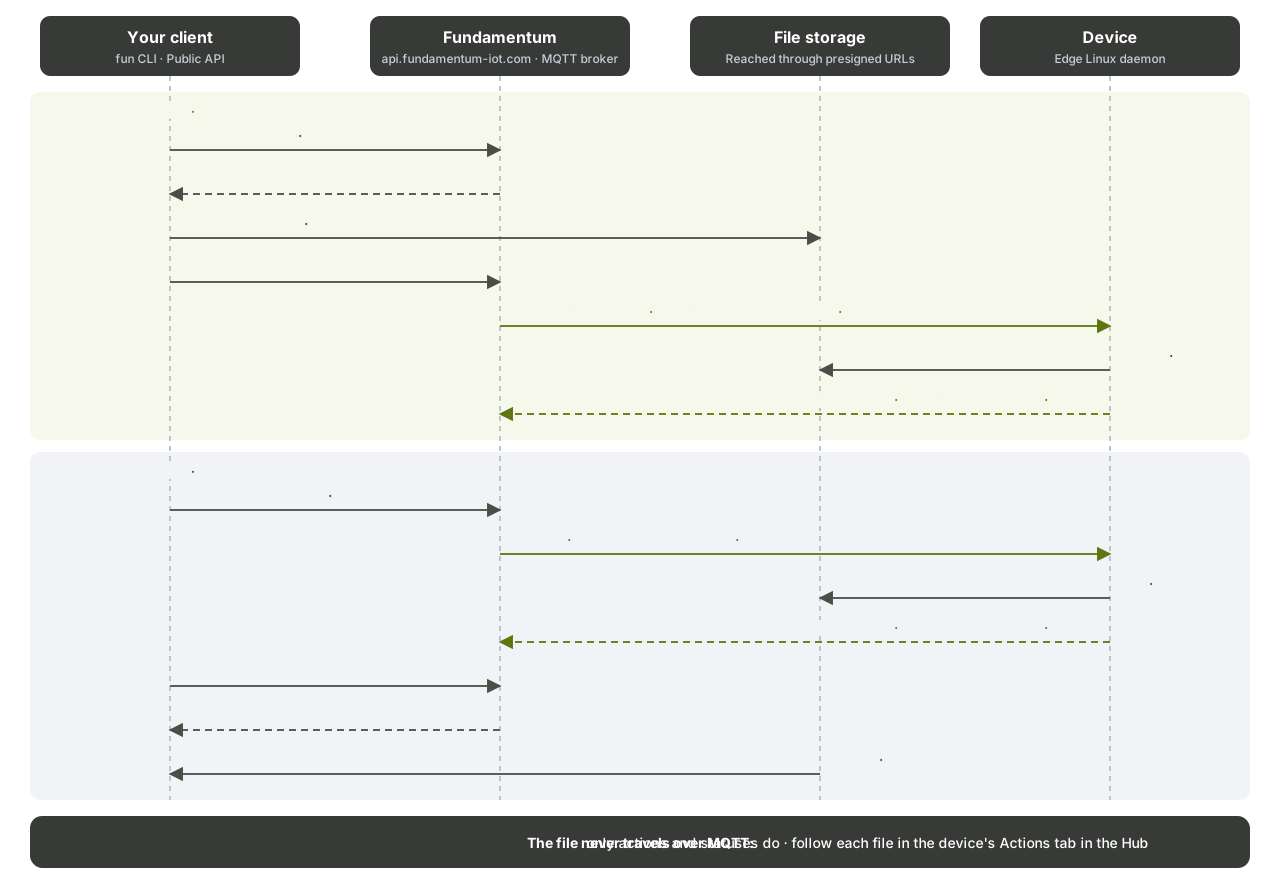
Send a file from the cloud to a device, such as a configuration file or a resource, or pull a file from a device to the cloud, such as a log or a diagnostic dump. The file never travels over MQTT: the device gets a presigned URL and moves the file over HTTPS.
Before you begin
- You have the
funCLI logged in, or a token for the Public API. - You know your
<project-id>,<registry-id>and the device's ID or serial number. - The device runs the Linux daemon with file transfer enabled, or implements the equivalent handling.
How it works
- You create a transfer: a direction (
cloud-to-deviceordevice-to-cloud), the files with their path on the device, and the target devices. - For
cloud-to-device, Fundamentum returns an upload URL per file. You upload the files. - You execute the transfer. Each target device receives one action per file, with a presigned URL to download from or upload to.
- The device moves the file and reports its status. You follow each file in the device's Actions tab in the Hub, or through the API.
A transfer goes from created to executed, or to cancelled. Presigned URLs are valid for 15 minutes.
Send a file to a device (CLI)
One command creates the transfer, uploads the file and executes it:
fun devices transfer cloud-to-device \
  -p <project-id> -r <registry-id> -s <serial-number> \
  -f config/app.toml --remote-path /etc/myapp/app.toml
-f must be a relative path inside the current directory. Use -d <device-id> instead of -s to target the device by ID.
Get a file from a device (CLI)
fun devices transfer device-to-cloud \
  -p <project-id> -r <registry-id> -s <serial-number> \
  --remote-path /var/log/myapp.log -n myapp.log
The CLI waits up to two minutes for the device to upload the file, then saves it locally under the name given with -n.
Send files to many devices (API)
The API takes several files and several devices in one transfer.
-
Create the transfer:
fun api v1 file-transfers store-file-transfer --project-id <project-id> --body '{
  "direction": "cloud-to-device",
  "registry_id": <registry-id>,
  "files": [{"name": "app.toml", "remote_path": "/etc/myapp/app.toml"}],
  "targets": [{"device_id": 101}, {"device_id": 102}]
}'
Keep the transfer
id(a string) and each file'supload_url. -
Upload each file:
curl --upload-file app.toml "<upload_url>" -
Execute the transfer:
fun api v1 file-transfers execute-file-transfer --project-id <project-id> --transfer-id <transfer-id>
A device-to-cloud transfer takes exactly one target. Once the device has uploaded, the file's download_url appears in:
fun api v1 file-transfers get-file-transfer-files --project-id <project-id> --transfer-id <transfer-id>
Manage transfers
| Task | Command |
|---|---|
| List transfers | fun api v1 file-transfers list-file-transfers --project-id <project-id> |
| See status transitions | fun api v1 file-transfers get-file-transfer-history --project-id <project-id> --transfer-id <transfer-id> |
| Cancel a transfer (it can't be executed afterwards) | fun api v1 file-transfers cancel-file-transfer --project-id <project-id> --transfer-id <transfer-id> |
| Delete a transfer | fun api v1 file-transfers delete-file-transfer --project-id <project-id> --transfer-id <transfer-id> |
To follow a file on a given device, use the device actions. See Actions and custom encoders.
On the device
With the Linux daemon, your application subscribes to file transfer requests, reports a status before starting, then either downloads the file or streams it up with its size and an integrity hash (for example sha512-...), and reports a final status. See Linux daemon.
What's next
- API reference in Swagger UI: FileTransfers
- Remote terminal and port forwarding
- Firmware updates (OTA)
- fun CLI reference